
CleanGuard Ultra AI
Storage Cleaner & Optimizer
Find duplicate photos, big videos and old screenshots, and decide what to delete.
To free up iPhone storage, start with the items that take the most space: duplicate photos, large videos and old screenshots. CleanGuard Ultra AI finds them on your iPhone and shows why each one is suggested, so you decide what to delete.
CleanGuard Ultra AI screenshots
Swipe →





What CleanGuard Ultra AI does
A full iPhone is a common problem. Photos and videos add up over the years, and screenshots of tickets, codes and receipts pile up in the gallery. When the storage warning appears, most people delete at random. A better way is to look at the largest items first and check each suggestion before you remove it.
Start in Settings, then General, then iPhone Storage. The list shows which apps and media use the most space. Photos and videos are usually the biggest group. Duplicate and similar photos, long videos and old screenshots are the usual targets, because they are safe to review one by one.
CleanGuard Ultra AI is a storage cleaner built around that approach. It scans the photo library for duplicates, blurry shots, large videos and old screenshots. Each suggestion shows the reason. Nothing is deleted without your confirmation, and you can undo your last swipe.
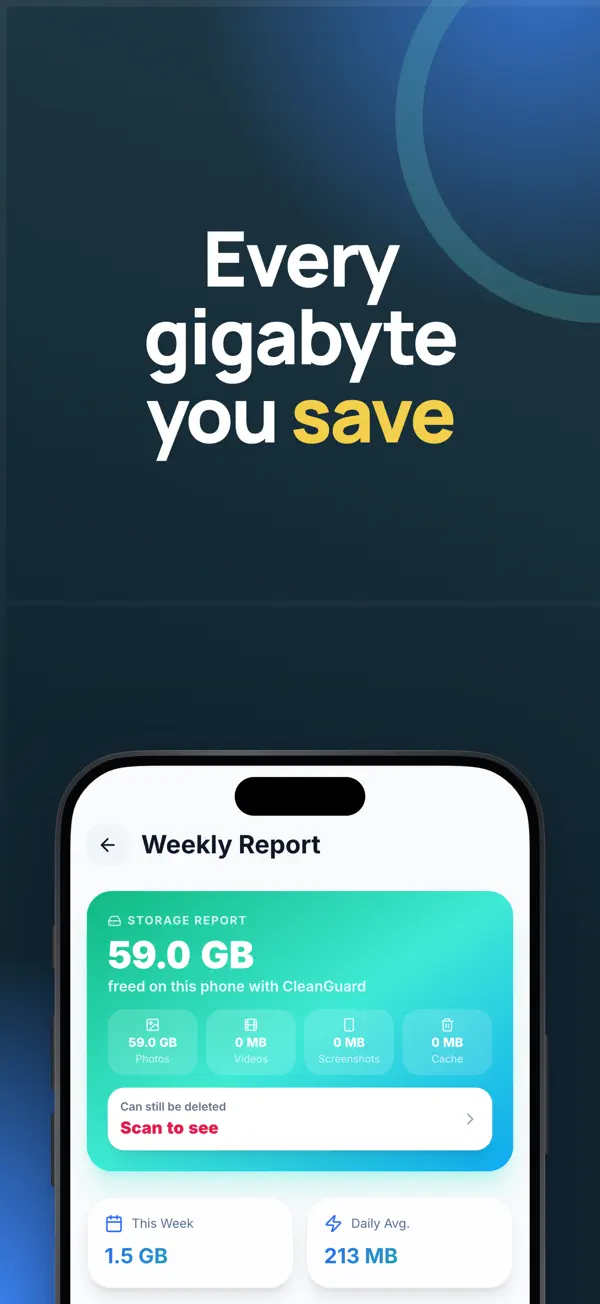
The app also covers storage analysis, a heaviest files list, a daily cleanup routine and a monthly report. The sections below explain what each tool does, how deletion stays safe, and how the free and paid plans differ.
Features
Find what fills storage
- Storage Analyzer shows what fills your space.
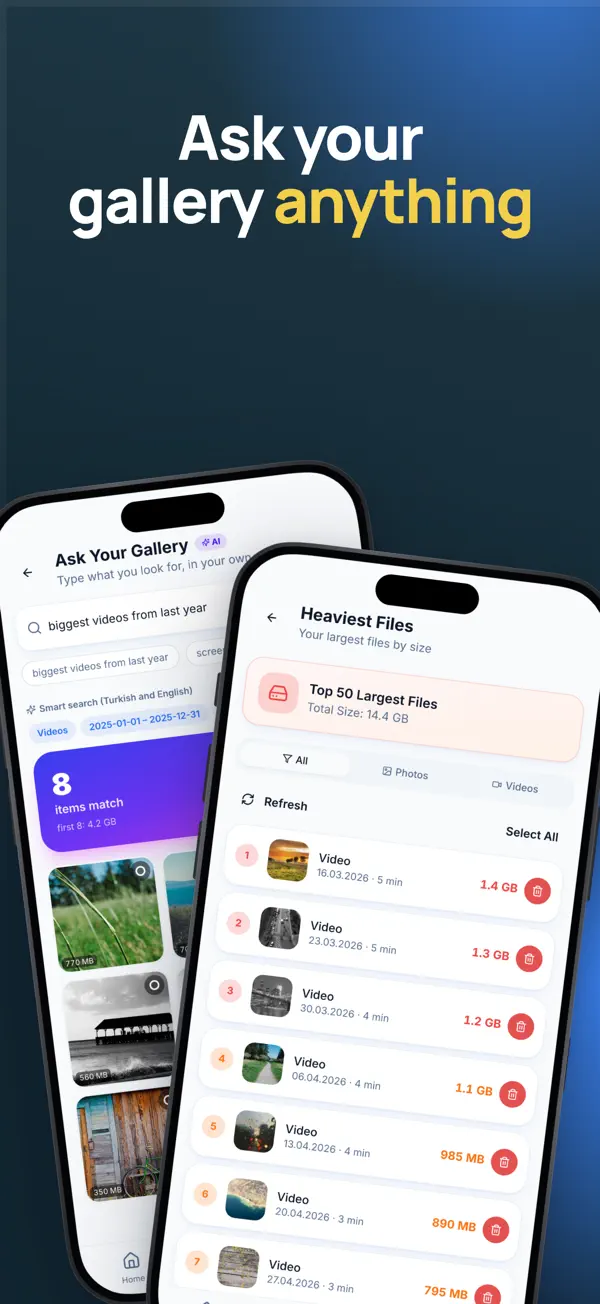
- Heaviest Files lists your largest items first.
- App Usage shows storage and data for each app.
- Storage Forecast estimates when your storage runs out.
Clean photos and videos
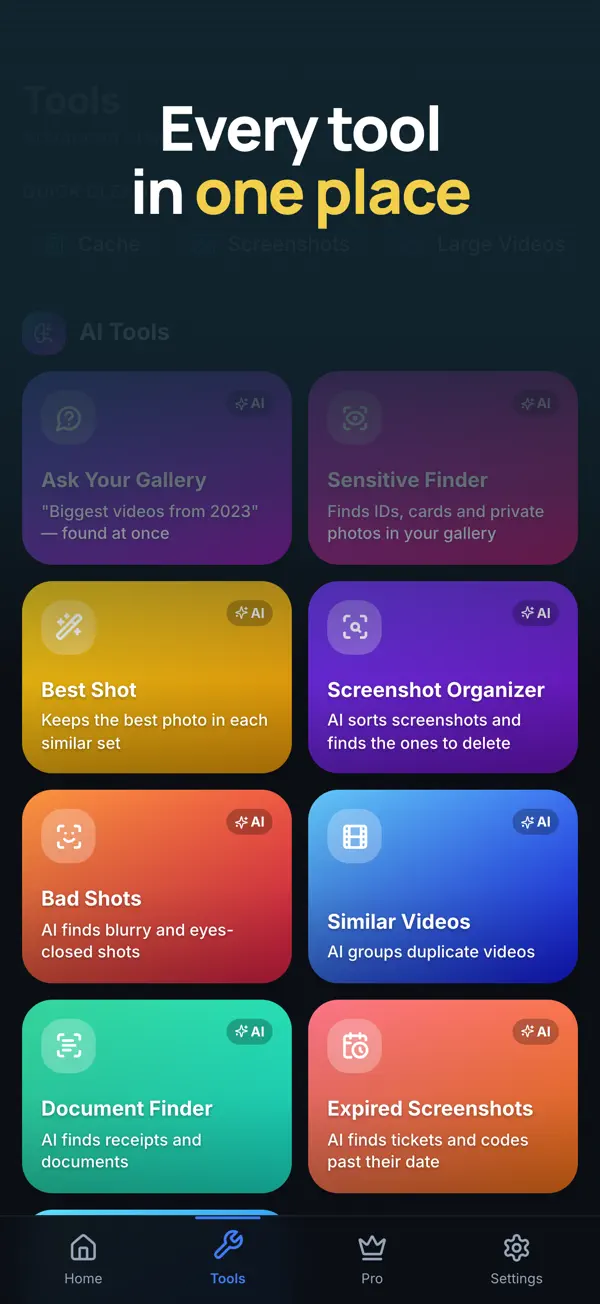
- Media Cleanup groups similar photos, poor-quality shots, screenshots and large videos.
- Best Shot keeps the best photo in each similar set.
- Bad Shots finds blurry, dark and eyes-closed photos.
- Similar Videos groups duplicate videos.
- Live Photo cleanup keeps the still image and drops the video part.
Screenshots and documents
- Screenshot Organizer sorts codes, chats and receipts.
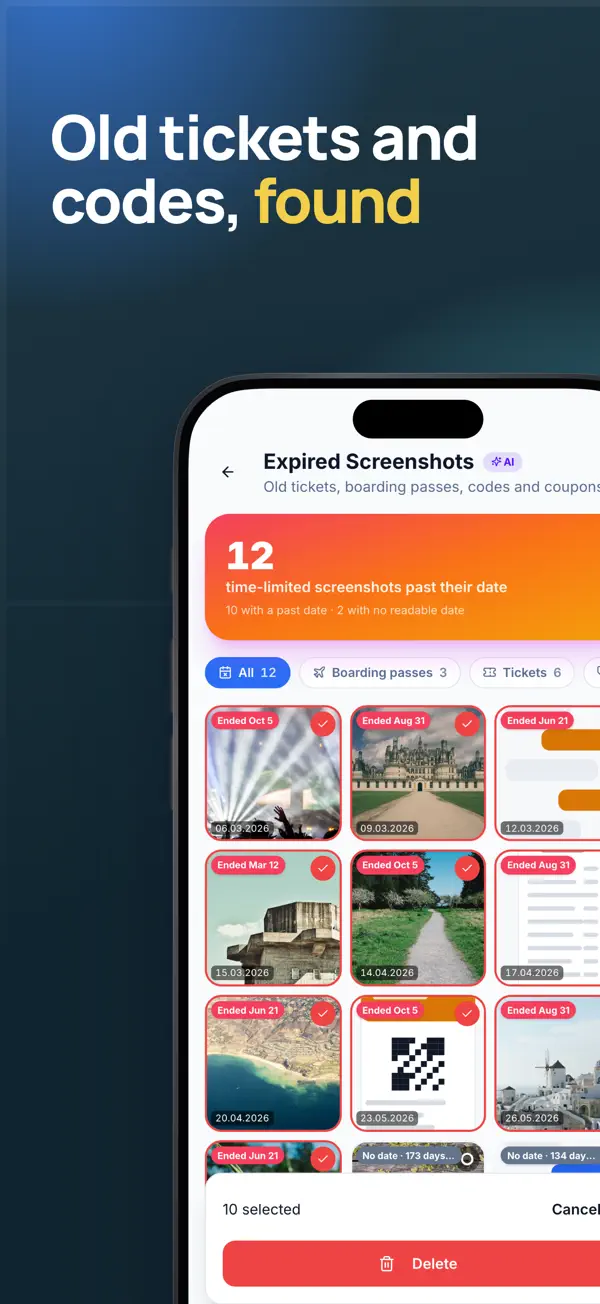
- Expired Screenshots finds old tickets, boarding passes, QR codes and coupons.
- Document Finder finds receipts and paperwork.
- Chat and social media view shows what chat apps saved to your gallery.
Safe deletion
- Nothing is deleted without your confirmation.
- Undo your last swipe.
- Recently Deleted keeps a 30-day list of what you removed, with the space freed.
- The full-screen viewer lets you preview each photo or video before you delete it.
Daily habit
- Daily 2 Minutes shows 20 photos a day: swipe left to delete, right to keep.
- A home screen widget shows your streak and the space saved this month.
- Optional reminders at the time you choose.
Who it is for
- Good for iPhone owners who see a storage full warning.
- Good for people with years of photos and many duplicates.
- Good for people who save many screenshots of tickets, codes and receipts.
- Good for anyone who wants to review every item before deleting.
- Good for people who want a short daily routine instead of one big clean-up.
Privacy
Photos are analyzed on your iPhone and are not uploaded. The app has no account, and scan results stay in memory or in the app's own container until you leave the tool.
Read the CleanGuard Ultra AI privacy policyPrice
CleanGuard Ultra AI is free to download and includes daily free cleanups. Pro, Pro+ AI and Ultimate unlock more tools and unlimited cleaning, on weekly, monthly or yearly plans. Apple handles all purchases.
Terms of useCleanGuard Ultra AI questions, answered
What takes the most space on an iPhone?
Photos, videos and app data often take the most space. Open Settings, then General, then iPhone Storage to see the list by app. CleanGuard Ultra AI adds a storage analyzer and a heaviest files list, so the largest items appear first.
Is it safe to let an app help delete photos?
Nothing is deleted without your confirmation. You review each suggestion, read the reason and confirm. You can undo your last swipe, and deleted items appear in a 30-day Recently Deleted list in the app.
Does CleanGuard Ultra AI upload my photos?
No. Photos are analyzed on your iPhone and are not uploaded. Scan results stay in memory or in the app's own container, and they are discarded when you leave a tool.
Will deleting duplicates free the space I expect?
The app is iCloud-aware, so it shows the space your iPhone really gets back. If iCloud Photos is on, copies may live in the cloud, so the space freed on the device can differ from the file sizes you see elsewhere.
Is the free version enough?
The free version includes daily free cleanups. AI tools such as Ask Your Gallery, Best Shot, Bad Shots and Storage Forecast are included in Pro+ AI and Ultimate. Pro and Ultimate unlock unlimited cleaning.
From our blog
- 5 min read
How to Clean Up Screenshots on iPhone
Clean up screenshots on iPhone with a sorting method by type, a monthly routine and safe deletion steps. Keep receipts and codes, and remove the rest.
- 5 min read
How to Delete Duplicate Photos on iPhone Safely
Find and delete duplicate photos on iPhone safely. Use the built-in Duplicates album, learn what to keep from each set and avoid deleting the wrong shot.
- 6 min read
How to Find and Delete Large Videos on iPhone
Find large videos on iPhone, learn how much space each minute of video takes by resolution, and delete them safely with a Recently Deleted check.
- 4 min read
How to Free Up iPhone Storage: A Practical Guide
Free up iPhone storage in practical steps: find what takes space, clear duplicate photos and big videos, and check old screenshots. Review first.
Get CleanGuard Ultra AI free.
Free on the App Store for iPhone and iPad (iOS 15.0 or later). Android is coming soon.


